386Views
191Copies
NeverUpdated
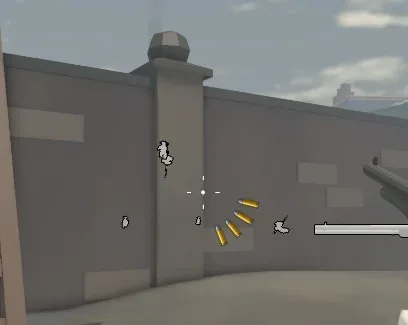
This open-source Universal ESP script adds visual overlays around other players. It is designed for Roblox games where characters use standard player models, so you can track movement even when the map is dark, crowded, or filled with walls and objects.
The script does not increase damage, expand hitboxes, or aim for you. It only displays extra information on your screen.
The Box ESP draws a frame around every supported player character.
This makes it easier to notice someone who blends into the environment or moves behind map objects. The box also gives you a clearer idea of the character’s size and current position without needing to search the whole screen.
Boxes are useful in:
PvP games with large maps;
survival games where players hide;
team games with crowded areas;
dark maps where avatars are difficult to see.
The box follows the character as they move, but its accuracy depends on how the game creates and updates player models.
Tracer ESP draws lines from your screen toward other characters.
Instead of checking every corner of the map, you can follow the direction of a tracer to find where another player is located. This is especially useful when a player is outside the center of your screen or positioned far away.
Tracers only show direction. They do not tell you whether a wall, obstacle, or safe area is between you and the target.
The Health Bar ESP displays the remaining health of supported players.
This can help you understand whether another player is:
at full health;
already damaged;
close to being defeated;
recovering after a fight.
In combat games, this information can help you avoid attacking a fully prepared opponent while ignoring someone with very little health left.
Health bars may stop updating correctly in games that use custom health systems instead of the standard Roblox Humanoid value.
Because the script is open source, its visible code can be reviewed and modified.
Developers can inspect how the boxes, tracers, and health bars are created. They can also adjust visual settings or study how Roblox drawing overlays follow player characters.
Open source does not automatically mean safe. The exact code and every external library should still be checked before execution, especially if the script loads additional files from a remote URL.
No universal script can be guaranteed to work in every experience.
It is most likely to work when the game uses:
normal Roblox player characters;
a HumanoidRootPart or similar central body part;
the standard Humanoid health system;
regular Players service character loading.
ESP may fail or show incorrect information when a game uses custom character models, NPC-controlled avatars, hidden character folders, unusual health values, or anti-cheat systems that change normal player behaviour.
Join the Roblox game where you want to test the overlay.
Wait until your character and the other players have loaded.
Copy the open-source script from the script block.
Paste it into a compatible script-running environment.
Execute the code once.
Enable Boxes, Tracers, or Health Bars from the menu if the script includes toggles.
Rejoin the server if the overlay does not detect characters that loaded before the script.
Start with one ESP option enabled. Using boxes, tracers, names, distances, and other overlays together can make the screen difficult to read, especially on mobile devices.
ESP provides information that is not normally visible and may give an unfair advantage in multiplayer games. Using third-party scripts or exploits can violate Roblox rules and may result in account restrictions.
Do not run unknown executable files, enter your Roblox password, or share account cookies with a script provider. Remote source code can also change after it has been published.
1-- Define initial customization options2local defaultHighlightColor = Color3.fromRGB(255, 255, 255) -- Default white color if no team color is found3local outlineColor = Color3.fromRGB(0, 0, 0) -- Black outline color4local fillTransparency = 0.5 -- Transparency of the fill5local outlineTransparency = 0 -- Transparency of the outline6local maxDistance = 500 -- Maximum distance to show highlights78-- Toggle variable9local highlightsEnabled = true1011-- Table to keep track of players and their distances12local playerDistances = {}1314-- Function to get the highlight color based on the player's team15local function getHighlightColor(player)16 local team = player.Team17 if team then18 return team.TeamColor.Color19 else20 return defaultHighlightColor21 end22end2324-- Function to create highlight for a player25local function createHighlight(player)26 local character = player.Character or player.CharacterAdded:Wait()27 if character and not character:FindFirstChild("PlayerHighlight") then28 local highlight = Instance.new("Highlight")29 highlight.Name = "PlayerHighlight"30 highlight.Adornee = character31 highlight.FillColor = getHighlightColor(player)32 highlight.OutlineColor = outlineColor33 highlight.FillTransparency = fillTransparency34 highlight.OutlineTransparency = outlineTransparency35 highlight.Parent = character36 end37end3839-- Function to remove highlight from a player40local function removeHighlight(player)41 local character = player.Character42 if character then43 local highlight = character:FindFirstChild("PlayerHighlight")44 if highlight then45 highlight:Destroy()46 end47 end48end4950-- Function to update highlights based on distance51local function updateHighlights()52 local localPlayer = game.Players.LocalPlayer53 local localCharacter = localPlayer.Character54 if localCharacter and localCharacter.PrimaryPart then55 local localPosition = localCharacter.PrimaryPart.Position56 for _, player in pairs(game.Players:GetPlayers()) do57 if player ~= localPlayer then58 local character = player.Character59 if character and character.PrimaryPart then60 local distance = (localPosition - character.PrimaryPart.Position).Magnitude61 playerDistances[player] = distance62 if distance <= maxDistance then63 createHighlight(player)64 else65 removeHighlight(player)66 end67 end68 end69 end70 end71end7273-- Batch processing function74local function batchUpdateHighlights()75 for _, player in pairs(game.Players:GetPlayers()) do76 if highlightsEnabled and playerDistances[player] and playerDistances[player] <= maxDistance then77 createHighlight(player)78 else79 removeHighlight(player)80 end81 end82end8384-- Connect events85game.Players.PlayerAdded:Connect(function(player)86 player.CharacterAdded:Connect(function()87 if highlightsEnabled then88 createHighlight(player)89 end90 end)91 player.CharacterRemoving:Connect(function()92 removeHighlight(player)93 end)94end)9596game.Players.PlayerRemoving:Connect(function(player)97 removeHighlight(player)98 playerDistances[player] = nil99end)100101-- Update highlights periodically102spawn(function()103 while true do104 if highlightsEnabled then105 updateHighlights()106 end107 wait(0.5) -- Adjust the interval as needed108 end109end)110111-- Batch processing periodically112spawn(function()113 while true do114 batchUpdateHighlights()115 wait(0.1) -- Adjust the interval as needed116 end117end)118119-- Toggle button logic120local function createToggleButton()121 local screenGui = Instance.new("ScreenGui")122 screenGui.Name = "ToggleHighlightGui"123 screenGui.Parent = game.Players.LocalPlayer:WaitForChild("PlayerGui")124125 local toggleButton = Instance.new("TextButton")126 toggleButton.Size = UDim2.new(0, 200, 0, 50)127 toggleButton.Position = UDim2.new(0, 10, 0, 10)128 toggleButton.Text = "Disable Highlights"129 toggleButton.Parent = screenGui130131 toggleButton.MouseButton1Click:Connect(function()132 highlightsEnabled = not highlightsEnabled133 if highlightsEnabled then134 toggleButton.Text = "Disable Highlights"135 updateHighlights() -- Initial update when enabled136 else137 toggleButton.Text = "Enable Highlights"138 -- Remove existing highlights139 for _, player in pairs(game.Players:GetPlayers()) do140 removeHighlight(player)141 end142 end143 end)144end145146-- Create toggle button147createToggleButton()

Browse
Script Types
Tools
Community
Comments
Loading comments…